Hello, Welcome to the video: Handheld or Digital Device Accessibility Tools 653
In this video, I will discuss Narrator for Windows and JAWS software, ChromeVox for Google Chromebook, VoiceOver for the iOS devices AKA Apple devices, the Brailliant display by Humanware combined with the Apple tablet AKA iPad, and the iPhone. This is Cloudia Pawluk presenting for the Course SPD 653, National University.
Windows features the Narrator screen reader through the Accessibility suite as seen under Ease of Use in the Settings.
Features: The Narrator gives audio access to the information on the screen as a voice, with prompts that describe the prompt, entry field, or text box.
The Intended Audience for Ease of Use features include individuals with low vision, blindness, reading fatigue, limitations in mouse control, and other challenges in reading.
How it Works: This is part of the Windows built-in Accessibility suites.
Use in Instructional experience: Use this screen reader to access documents in audible format.
For more effective screen reading options, look into software such as Dolphin or JAWS
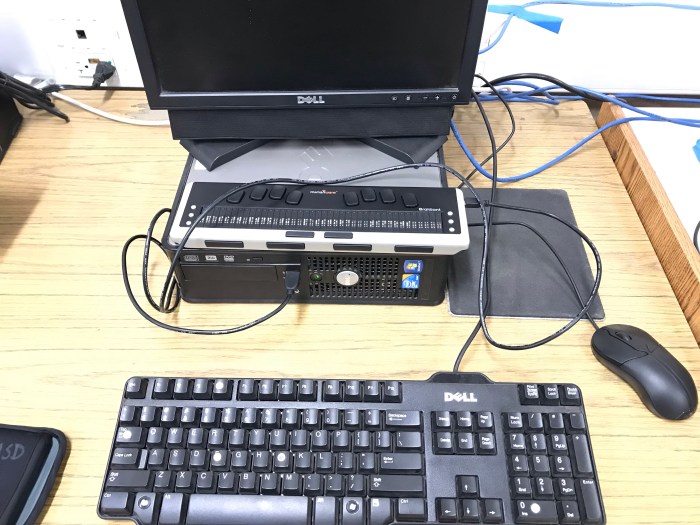
JAWS has a version of screen reading that works well with Windows. The license is costly but well worth the value if the district purchases a version for the student. There are certain conditions, and once these conditions are met the student has access to that version JAWS for a lifetime. The trial or free version of JAWS is available at no charge; this version lasts for 40 minutes and then the trial ends. With this option, the user can restart the computer and use JAWS for another 40 minutes, and so on! In this clip, JAWS works together with the Brailliant display to provide a refreshable braille display of the text in the document.
Google Chromebook has a screen reader called Chromevox. Features: Chromevox features screen reading, and highlights items that the computer is reading with a colored frame. Other control or access through keyboard navigation, changes the contrast for better visiblity. Overview: this is part of the Google built-in accessibility suites. It is only available on Chromebooks and will have to be turned off when other software duplicates the action of the Chromevox feature.
Intended Audience: the intended audience includes individuals with low vision, blindness, challenges in reading, and reading fatigue.
How it works: ChromeVox reads the selection of the text, the textbox, or prompt, and works best with the suite of Google apps, based on the user’s directive.
Use in instructional experience: Chromevox is useful for the quick look around a website, for some navigation needs, and for reading documents. Chromevox can guide a student to read a document more than it can help locate a video on youtube.
Personal Observation: Chromevox reads automatically letters as the student types them. This would help with some editing purposes in using search engines.
iOS systems AKA Apple devices like the phone use VoiceOver, which is a screen reader.
Once VoiceOver is activated, certain features in controls change slightly in the response to the finger swish, pinch, and fingertip control.
Overview: VoiceOver settings include rotary control to change features as the user is in mid-project.
Intended Audience: the intended audience includes individuals with low vision, blindness, challenges in reading, and reading fatigue.
Instructional Experience: The use of VoiceOver is useful for individuals with no light perception as VoiceOver reads every highlit or interactive prompt onscreen and provides prompts for user response.
How it Works: the touch-screen responds to the direction of the touch, number of fingertips touching, and amount of pressure, to provide information based on the user’s direction.
Personal Observation: using rotary controls to change features as the user is in mid-project means you won’t have to get a sighted friend to set things up for you every time. However these apps are heavily dependent on Bluetooth and Wifi for connectivity, which can lead to other frustrating limitations. Wired connections provide some more stability in input and predictable output. In this image, iOS works together with the Brailliant display to provide a refreshable braille display of the text in the document.
iOS systems like the iPad or tablet also use VoiceOver, which is a screen reader; the advantage is the larger screen.
As an OverView of Apps that work well with Accessibility, the user needs a range of apps and more than one way to synchronize his or her work between the scanner, reader, and document editor.
Scanner Apps can correct text at a distance, text viewed in low contrast lighting, or text that has been skewed from an extreme angle.
Intended Audience: the intended audience includes individuals with low vision, blindness, challenges in reading, and reading fatigue.
In this clip, The scanner app is used to capture the text, using OCR or Optical Character Reader, pasted into another app, which turn reads the text to the user.
This is useful for teaching accessibility options when taking notes, editing text, or having the document read back as an accessibility option.
Humanware’s Brailliant display works with desktop computers, laptops, and bluetooth devices as a braille refreshable display. Features: The Brailliant display features six command keys for navigation on the screen or through the document thumb keys for previous and back, a physical Braille keypad, a 32-cell Braille display, and a cursor router above each Braille cell to allow the user to move the cursor to a given character. It works by displaying the visual information as tactile Braille output.
The intended audience for this display are individuals who use Braille as their primary media.
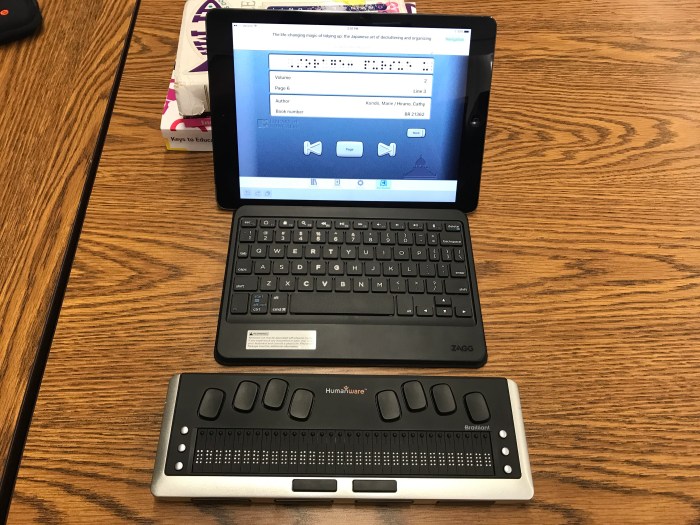
This is useful for teaching Braille and accessing documents on the internet.
This is Cloudia Pawluk presenting for the Course SPD 653, National University.
Thank you for watching!
List of Resources:
Bugaj, C. & Norton-Darr, S. (2010), the practical (and fun) guide to assistive technology in public schools.
Harwell, J. & Jackson, R. (2008), The complete learning disabilities handbook, third edition
JAWS, Jobs Access With Speech, by Freedom Scientific, A Vispero Brand, freedomscientific.com
Humanware, http://www.humanware.com/en-usa/home
For a detailed list of the resources used, and for a transcript of this video’s audio, please visit my website, spedjourney.com, and click on the title of the video: Handheld or Digital Device Accessibility Tools 653
References
Bugaj, C., & Norton-Darr, S. (2010). The practical (and fun) guide to assistive technology in public schools. Oregon: International Society for Technology in Education.
Harwell, J., & Jackson, R. (2008). The complete learning disabilities handbook, third edition. San Francisco: Jossey-Bass Teacher.
Music by: Tommie Peacock, Long Peach Pier Live Performance
 spedjourney.com